
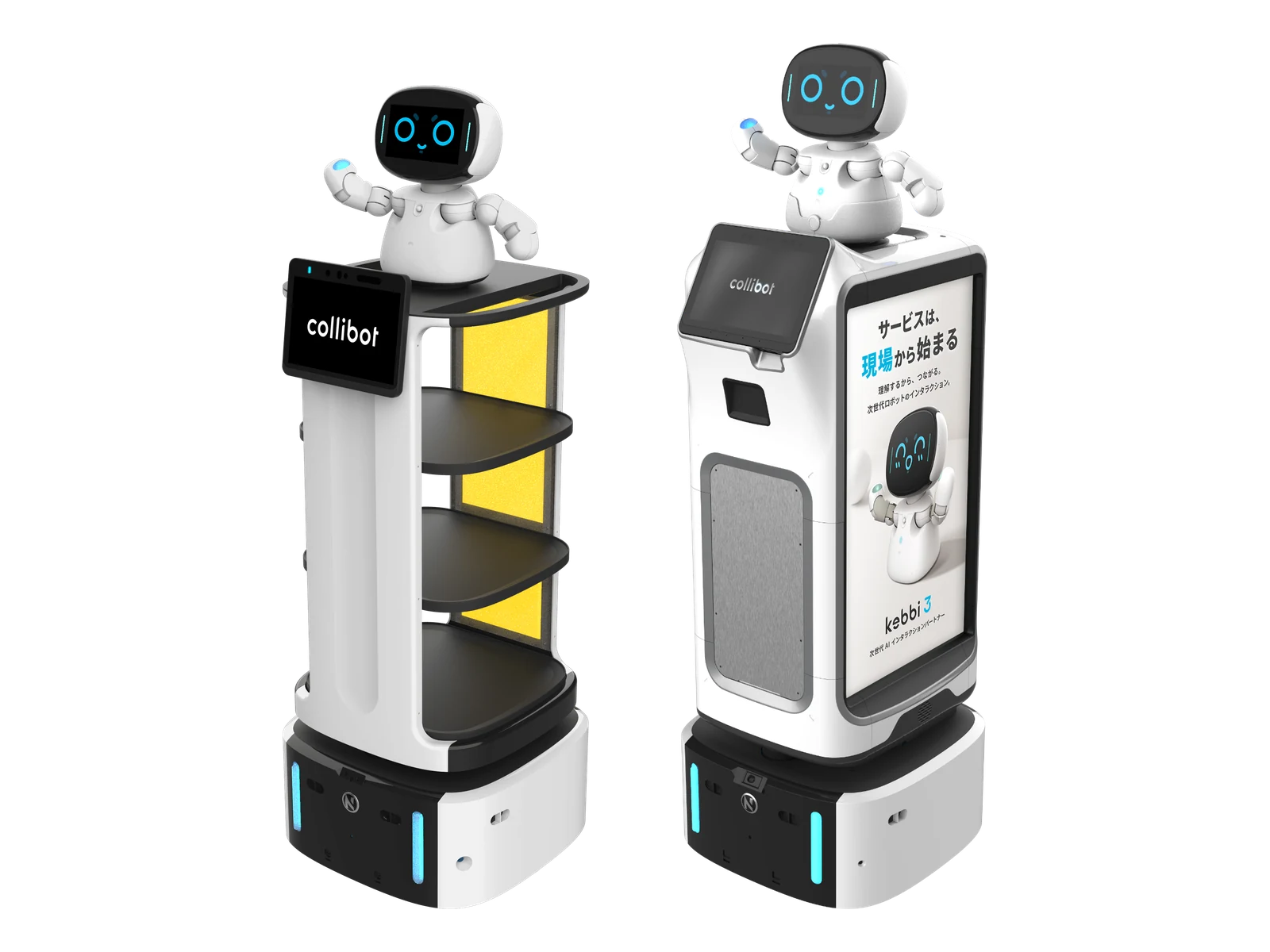
Multi-robot support
Operate various NUWA robots on a single platform. Configure collaborative operations tailored to your site, such as sharing workloads during peak hours. Please contact us regarding compatible models and configurations.
Bring designed services to the field.
Robots as a Service
NUWA's robot service platform, providing robots, cloud, and AI as a single service.
NUWA RaaS Suite combines robot hardware, AI, a robot management system (RMS), and cloud development tools as a foundation for launching services such as customer service, guidance, and food delivery. We support everything from implementation to service design and operational management.
Operate various NUWA robots on a single platform. Configure collaborative operations tailored to your site, such as sharing workloads during peak hours. Please contact us regarding compatible models and configurations.
Integrates Microsoft Azure OpenAI's linguistic capabilities with rich emotional expressions. Combined with corporate knowledge, it enhances response accuracy and flexibility.
Robot Management System
A foundation for centrally monitoring and updating on-site robots from remote locations. You can determine who can access robots at which store, send apps and materials to multiple units at once, and check on-screen how many units are currently operating. Assets created with other tools ultimately pass through here to reach the frontline.
3 tiers: Owner, Administrator, and Operator (displayed on screen as: Member). You can create device groups for each store and assign staff only to their designated group.
Batch-distribute apps, files, and conversation projects to robots in selected groups. There is no need to go and operate the robots one at a time.
Check connection status, software version, and available storage at a glance. In the event of an anomaly, resolve it remotely.
Create and distribute navigation maps for Collibot, and share videos, audio, and motions via the team library.
Step 1
First is configuring permissions. The Owner assigns Administrators, and Administrators grant Operator (displayed on screen as: Member) permissions to store staff. Operators can only operate robots at their own store and cannot access settings for other stores. This design is useful when expanding to multiple stores.
Step 2
Invite members, create device groups by store or application, and activate robots with a product key. These are the 4 stages of basic activation; all that is required on the robot side is entering the key. You can check the progress on the screen.
Step 3
Restaurant menus, store-specific guides, and sales materials. Anything you want to deliver to the field can be sent in bulk from the web portal to robots in selected groups. Adding this file transfer to the 4 basic activation stages makes 5 stages until operation starts. On the receiving robot side, staff can verify download items on the screen before importing.
Step 4
Delivered items appear in a list on the robot's screen. The person in charge can check the content and file size before importing. There is no need to open a PC on site—everything is completed simply by touching the device's screen.
The maximum number of units depends on your contract. If you plan to operate across multiple locations and multiple units, please let us know the number of stores and units. We will provide guidance on management methods suited to your configuration.
Yes, they can. You can create device groups by store and assign Operator (displayed as Member) permissions to the person in charge of that store. Operators can only control robots in their assigned group and cannot view settings for other stores.
Register them with a product key and add them to the target device group. The distributed content and settings tied to that group will automatically apply to the new units as well.
Service Flow Builder
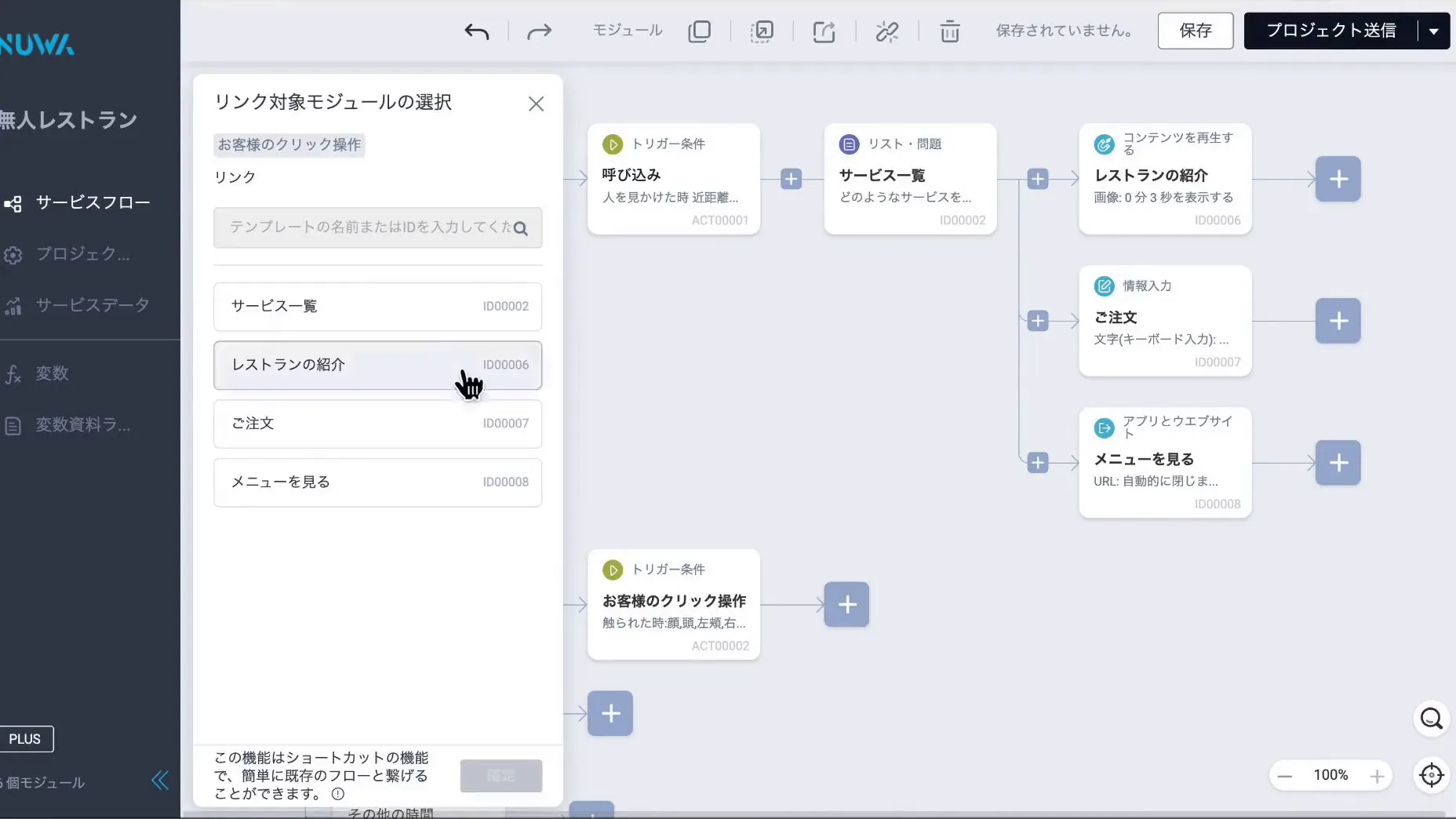
A service flow editing tool that connects modules to build workflows from reception to guidance, intake, and handover. No programming required. Frontline staff can decide triggers and robot movements on the spot, and facial expressions, content, quizzes, and dialogues created with other tools can also be called and used from this flow.
Connect trigger, branch, main operation, and advanced modules with lines on the artboard. The connected layout directly becomes the workflow on site.
Call facial expressions created in Face Editor, animations from Content Editor, dialogues from Conversation Training Kit, and questions from Quiz Editor directly from within your flow.
Specify operating hours and triggers such as detecting a person, being touched, or having the screen tapped. Recurring schedules can also be configured.
Once operations begin, check usage counts and percentages for each guidance item on the Service Data screen to identify underutilized entry points and optimize the flow.
Step 1
Build a service flow simply by placing modules on the artboard and connecting them sequentially with lines. With pre-built triggers, conditional branching, content playback, information input, and shortcuts, no coding is required. You can also include multiple flows in a single project and switch between them based on the time of day or specific scenario.
Step 2
Greeting phrases, reaction triggers, and displayed images can be swapped on the spot. Seasonal or campaign-based updates are completed entirely within Roflow, eliminating the need to wait for development with each update. You can preview the robot screen to check the appearance before deploying to the site.
Step 3
Completed flows are delivered to on-site robots via RMS. Once operations begin, the Service Data screen displays active unit counts, flow usage rates, and peak hours, allowing you to see which entry points are underutilized and optimize the flow.
No, it is not required. You can build service flows simply by placing modules and connecting them with lines. If more advanced control is needed, modules for advanced users (such as MQTT) and an SDK are also available.
It supports the Kebbi series, Collibot, and Service Robot. You select the robot model when creating a project. Please check in advance, as you cannot switch between Service Robot and other models after creation.
Voice prompts, displayed images, and trigger conditions can be changed on the Roflow screen. Seasonal and campaign updates can be completed entirely by on-site staff.
Conversation Trainkit
A tool to define what and how the robot responds. It offers 2 creation methods—entering frequently asked questions or importing existing documents directly—and allows you to configure speaking personality. Created dialogues can be called from Roflow flows for on-site use.
Choose the method that fits your available materials: Q&A Dialogue, where you enter questions and answers, or GenAI Conversation, which utilizes existing documents as knowledge.
Configure greeting tone, response length, and even phrasing for declining requests. Even for the same content, the speaking style can be tailored to match your store's atmosphere.
Upload PDF, TXT, or DOCX files, and they become searchable in 2–3 minutes. Product information and company regulations can be used as-is.
Verify responses in the web-based test chat before sending them to the robot. Any adjustments can be made on the spot.
Step 1
Choose a Q&A Dialogue project if your inquiries mainly have fixed answers, or a GenAI Conversation project if you have explanatory documents and regulations on hand. Q&A answers exactly as entered, while GenAI responds based on loaded materials. You can also use both as needed.
Step 2
Product catalogs, company regulations, and FAQ lists. Upload your files in PDF, TXT, or DOCX format, and they become searchable in 2–3 minutes. Documents where text is embedded as images cannot be read, so providing them as plain text ensures reliable results.
Step 3
When a question is received, it first searches the knowledge base for relevant sections and constructs an answer based on them (Retrieval-Augmented Generation / RAG). Designed not to force answers when information is not in the materials, it is ideal for inquiries requiring accuracy, such as product details and company regulations.
PDF, TXT, and DOCX are supported. Materials containing text as images (such as scanned posters) cannot be read, so please provide them in text format. Processing completes within 2–3 minutes after upload.
Source: NUWA Product Training MaterialsLast checked: 2026-08-24
Yes, they can be corrected. You can check responses in the web-based test chat, adjust knowledge base content and personality settings, and deploy them to the robot again. Adjustments can still be made even after installation on-site.
They are integrated into Roflow flows as conversation modules. They are used in combination with action trigger conditions such as "talk when a person is detected" or "accept questions when the screen is tapped."
In-store customer service setup
A configuration combining Roflow, Conversation Training Kit, and RMS for retail and service storefronts. Use Roflow to design the customer service flow and Conversation Training Kit to prepare dialogues based on product information. Manage the operating status of robots across multiple stores with RMS, while Kebbi assists visiting customers on-site.
With its approachable appearance and conversational interaction, it creates a welcoming touchpoint that invites store visitors to stop by.
Standardize customer service to deliver consistent quality information and experiences across all stores and hours, minimizing variations among staff.
Delegate frequently asked questions to the robot to reduce opportunity loss from wait times, creating a model where staff and robots share service duties.
Placement
This is an illustrative image of placement on a retail counter. Positional relationships with fixtures and merchandise, customer traffic flow, and power/network requirements are verified in advance.
Customer Service
Because the screen is positioned at eye level during customer interactions, visitors who stop by can read guidance naturally without having to look up or down.
Design
Combine attracting customers, product introductions, answering questions, and navigation to subsequent screens as modules in Roflow. Sales Booster is the name of a configuration that brings together the robots, dialogue, and operational management required for in-store customer service into a unified flow—it is not a new standalone feature.
It can be used for customer service, reception, and sales promotion in the retail, restaurant, and service industries. Please contact us regarding specific applications.
The configuration and contract details for robot hardware and cloud tools vary depending on your requirements. Please contact us via our inquiry form.
Supports API and MQTT to integrate with existing business systems and IoT devices. It can be configured for diverse settings, including retail, food service, and education.

Diagrams are conceptual illustrations. Actual screens and scope of provision vary depending on contract terms, robot model, and OS.


| Accounts & Permissions | Team account settings / Members and permissions / Device groups / Configuration management / File transfer and history management |
|---|---|
| Remote Monitoring & Notifications | Network connection status and communication quality checks / Roflow and app execution & installation status / HW version and motor status checks / Low battery notifications / Continuous operating time management / Device lift detection / Alert notification destination settings |
| Remote Operation | Remote reboot / OS version repair / Remote app launch and version updates / System log upload / Remote robot screen capture / Remote dismissal of on-screen notifications / Volume and screen brightness adjustment / Auto-conversation listening mode ON/OFF / Remote power-saving mode and motor lock configuration |
| Operational Customization | Monitoring item & condition customization / Suspend and resume remote monitoring / Monitoring report export (Under Development) |
| Remote Monitoring & Notifications | Network connection status and communication quality checks / Kebbi and Collibot connection status / Manual push mode notification / Alert notification destination settings |
|---|---|
| Movement Control | Lock active map / Movement layer ON/OFF |
| Remote Operation | Remote reboot / OS version repair and updates / Remote app launch and version updates / Volume and screen brightness adjustment / System log upload / Remote robot screen capture |
| Operational Reports | Monitoring report export (Under Development) |
| Scope of Service | The features listed are the primary functions of RMS. Available features vary depending on the model, OS version, and contract terms. |
|---|---|
| Additional Features | Features are continuously being expanded. Please contact us for the latest compatibility and availability. |
Please feel free to contact us regarding implementation methods and our support system.